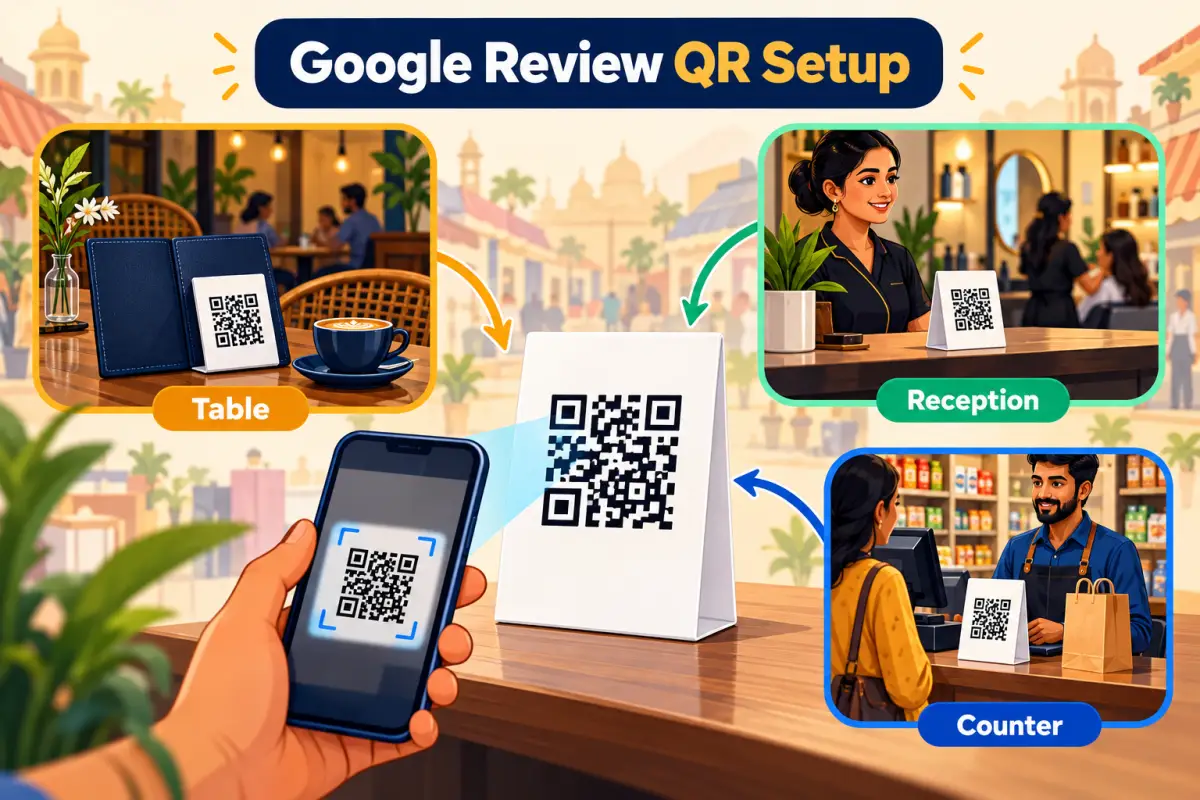
We've seen the same thing in dozens of shops. A beautiful review standee, printed on thick board, placed on a shelf near the entrance. Zero scans in a month. Moved to the billing counter, it got scanned that afternoon.
Placement matters more than design. A QR works when it sits where customers pause with their phone already in hand, and after they've had the experience, not before.
The rule: after the experience, at a pause
Spots that don't get scanned
- The entrance (they haven't had the experience yet)
- On the menu (they're busy choosing)
- High on a wall (nobody looks up)
- Behind the counter, facing staff
Spots that do
- Billing counter, facing the customer
- Inside the bill folder
- Reception desk after the appointment
- On the bag or the invoice
Where it goes, by business
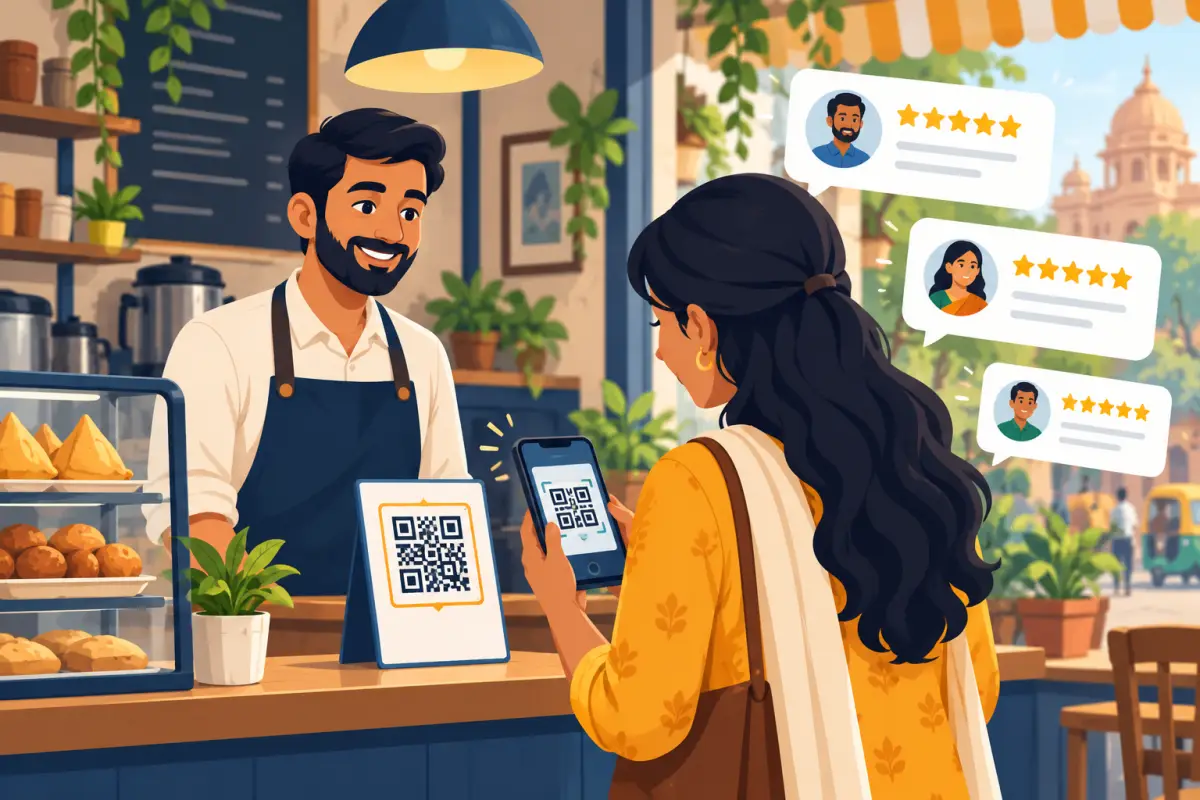
Where customers actually scan
What we typically see across local businesses. Your numbers will vary, so measure your own.
Set it up in ten minutes
- LinkYour branch's review link
- CodeDark on light, white border
- PrintOne test card first
- ScanTwo phones, real lighting
Get the review link for the exact branch (here's how). Make the code dark on a light background with empty space around it. Avoid glossy lamination, which glares under shop tube lights. Print one card, scan it where it'll actually sit, then print the rest.
Match the look to your place
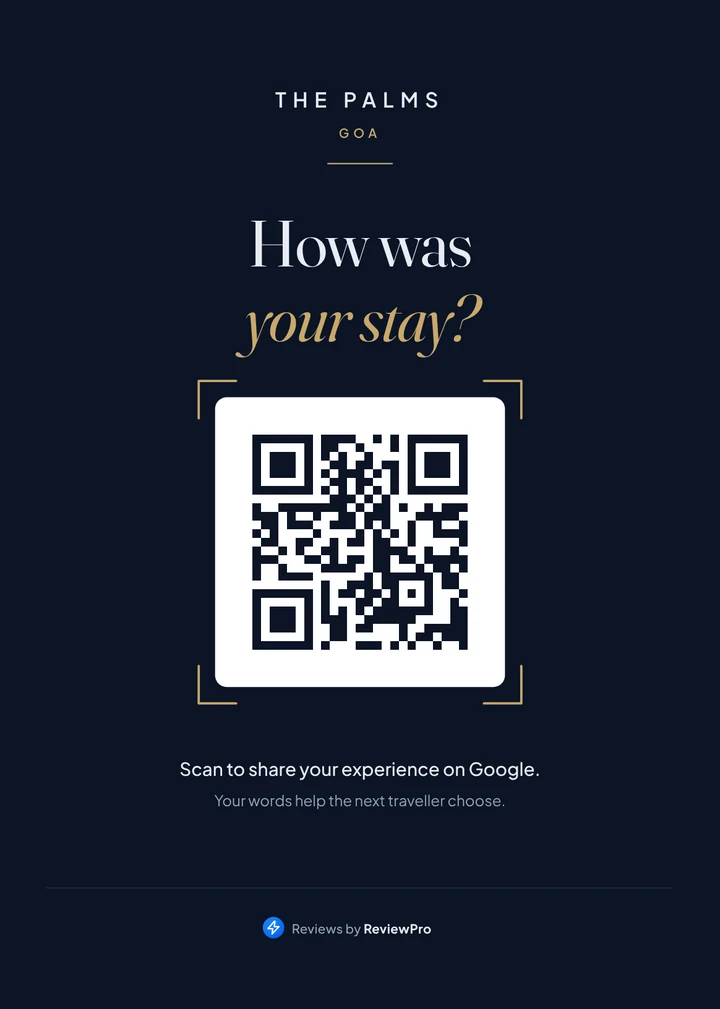
ReviewPro gives you print-ready standees in both styles, already linked to your review page. For customers who rate 4 or 5 stars, the page offers AI-written drafts to post on Google. For those who pick 1 to 3 stars, it shows a private feedback form first, with the "Go to Google review anyway" link always visible.
Make the ask normal
One line from staff makes a real difference: "If you liked it, you can scan this and leave a quick review." Say it to everyone. Don't offer discounts for reviews, and don't only point it out to customers who look happy. Google doesn't allow either.
Monthly check
| Check | Why |
|---|---|
| Scan every standee | Cards get swapped between branches |
| Replace damaged ones | Scratched or wet codes stop scanning |
| Compare scans by spot | Move the weakest one |
| Still facing customers? | Staff turn them around while cleaning |
Source: Google's guidance on getting reviews. For print sizes and design, see our QR code guide. Then use the Google Maps checklist for the rest of your profile.