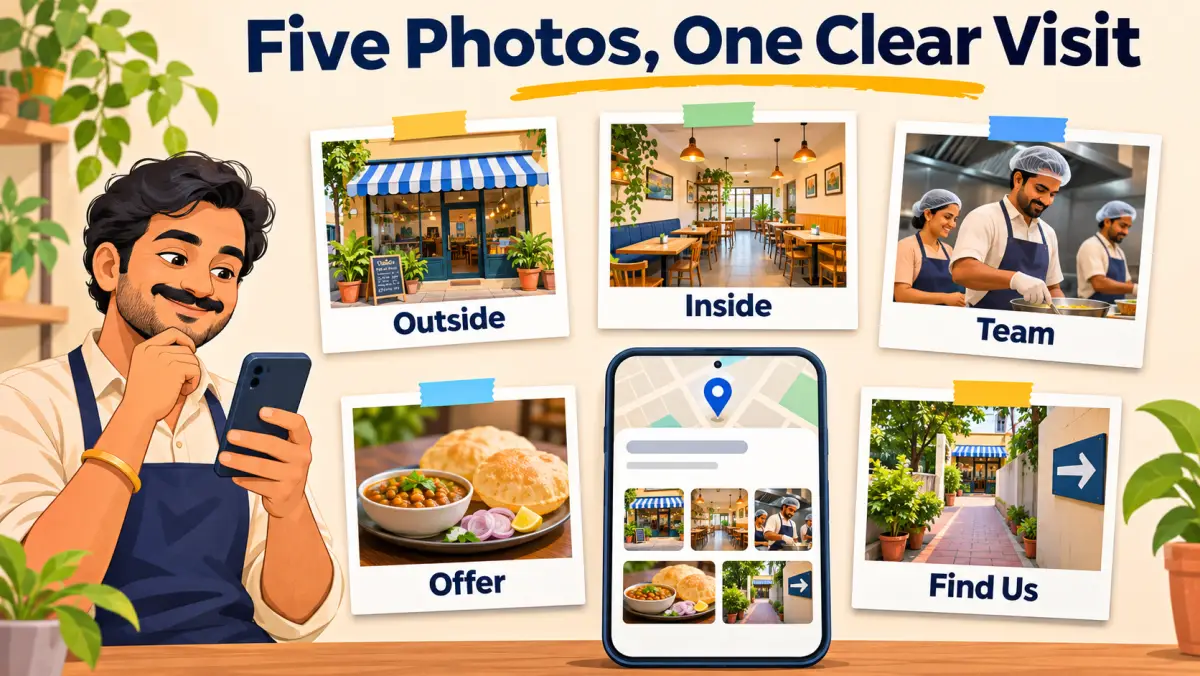
Quick answer: a useful Business Profile gallery is not a catalogue of posters. It helps a first-time customer recognise your business, understand what happens inside, and find the right entrance.
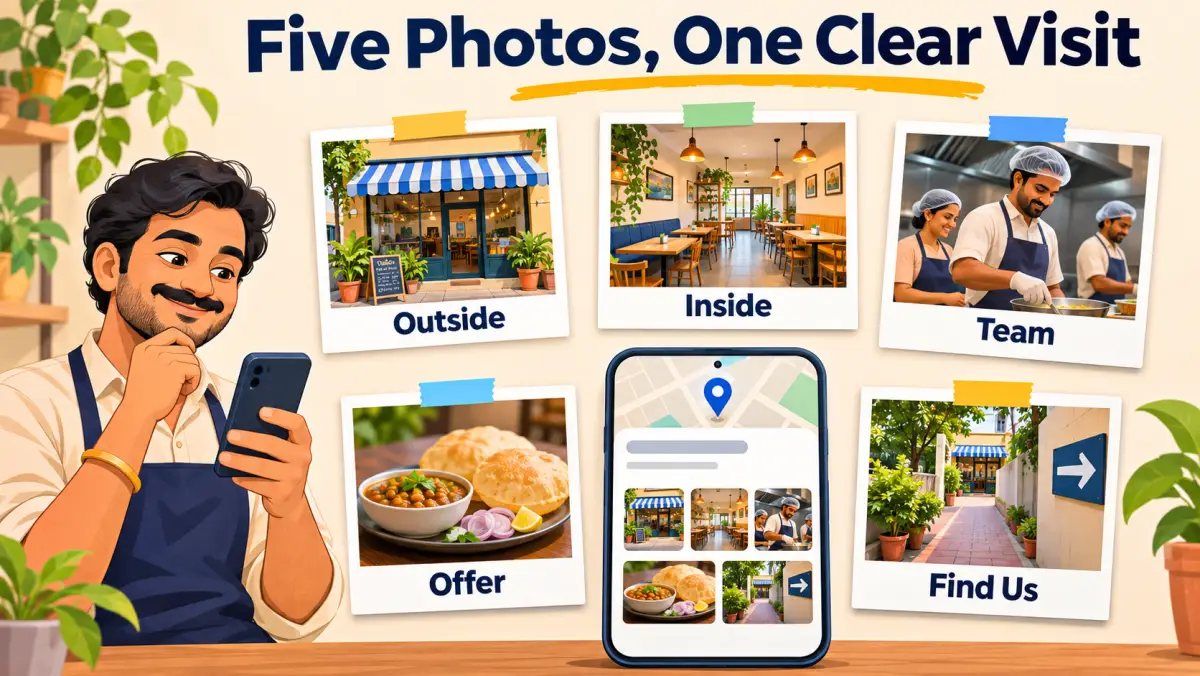
Build a five-photo set around the customer's visit
Start with the images that remove uncertainty for a new visitor.
- 01OutsideShow the storefront, sign, or building entrance.
- 02InsideShow the real counter, seating, room, or workspace.
- 03TeamShow who delivers the service, with permission.
- 04OfferShow the actual product, treatment, menu, or result.
- 05Find usShow a landmark, parking cue, or path from the street.
Begin with the photo that gets a customer to the right door. Google's photo-management guidance says an exterior image helps customers recognise a business when they visit, while storefront, products, and services can make the Profile more useful and attractive.
Take the first photo from the customer's approach
Make navigation the first job of the gallery. A café in Pune can show its lane-facing sign; a clinic in Indore can show the building name and floor; a salon in Bengaluru can show the entrance from the nearest landmark. Google's business-specific photo tips recommend capturing the business from the directions customers may approach.
Use the next three photos to set a truthful expectation
Looks polished, but unclear
- A generic dining room that is not yours.
- A poster that hides the actual service space.
- A heavily altered image that changes the experience.
Shows what a visitor gets
- Your real workspace, table, reception, or treatment area.
- A current product or service in normal use.
- A team image that reflects the real business.
A customer should arrive to the same experience the gallery promised. Google's photo standards say images should be in focus, well lit, without significant alterations or excessive filters, and should represent reality. The same official guidance lists JPG or PNG, 10 KB to 5 MB, and recommends 720 × 720 pixels for uploaded photos.
Let AI speed up planning, not replace real local proof
“Show the service counter a first-time visitor will see at 11 am.”
- The place and offer are current.
- People shown have agreed to appear.
- No private customer information is visible.
- The image helps a customer decide or arrive.
Use generated content where it adds context, not where a customer needs proof. Web Sarathi currently promotes turning a product or service image into an AI-written Google post; Dhanda AI promotes AI content alongside Business Profile analysis. Both workflows can reduce drafting time, but the profile gallery still needs real, owner-reviewed business imagery. See Web Sarathi's product page and Dhanda AI's product page for their stated features.
Use a five-minute upload check before publishing
Keep the gallery dependable
- Verify: a Profile needs to be verified for photos to appear.
- Wait: Google says media can take 24–48 hours to show.
- Review: replace an image if it no longer reflects the business.
Do not promise that a cover choice will always appear first.
Set a cover photo, then check what customers actually see. Google explains that choosing a cover image does not guarantee it will appear first, and that media may be pending, not approved, or live. Review the upload-status guidance after each change.
Refresh one useful photo each month
Where ReviewPro fits: use ReviewPro Photos to manage the Google photo workflow, and use ReviewPro Posts to prepare a separate branded update when a timely message is needed. Keep the gallery grounded in the real business, then pair the next visit with a fair, optional Google review QR after the customer experience.